A 1 App Builders
📱 Social Media Settings
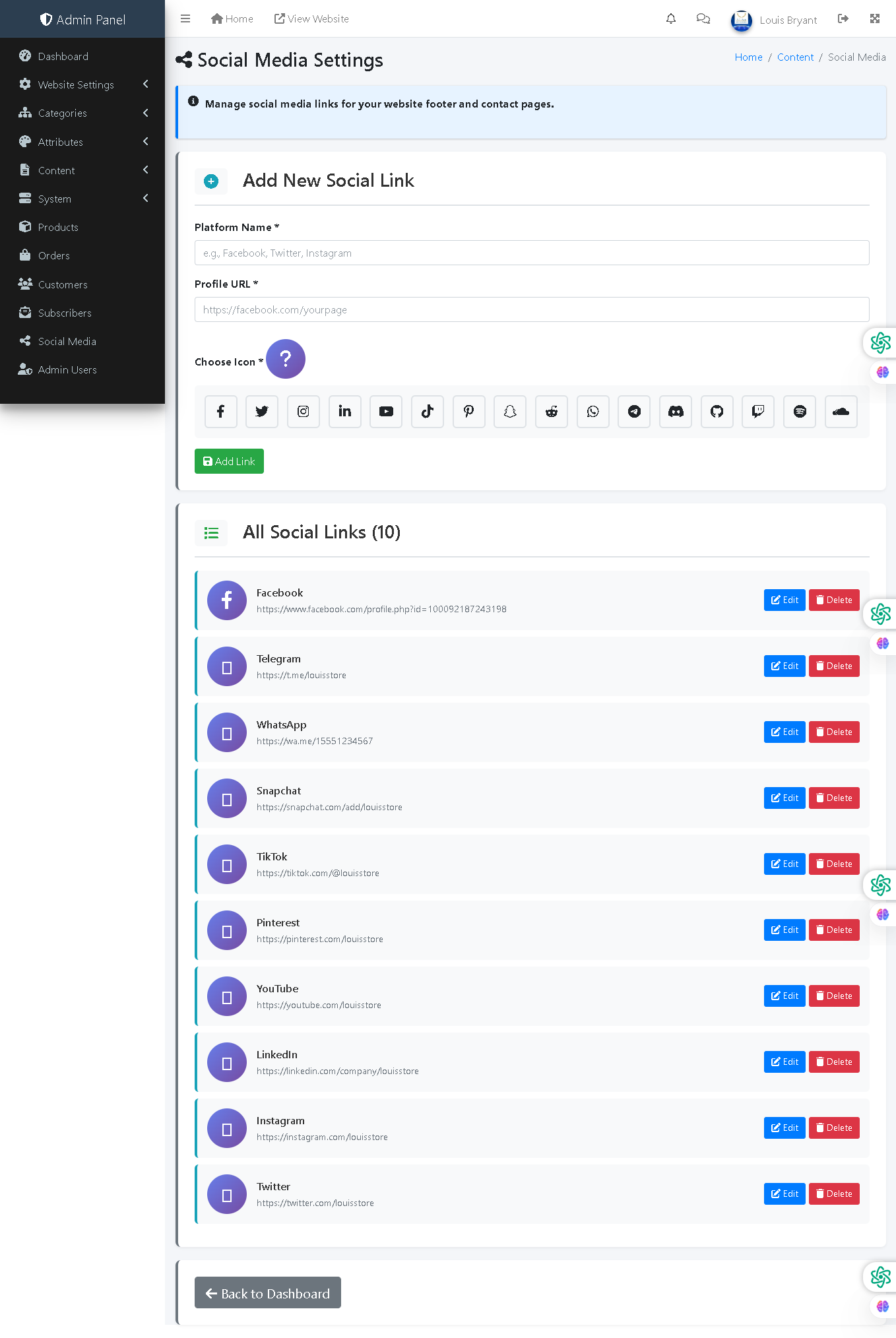
This admin panel page allows administrators to manage social media links displayed on the website footer and contact pages. Administrators can add, edit, and delete links to social media profiles across multiple platforms with custom icons, enabling visitors to follow the business on their preferred social networks.
🔍 How It Works
- Add New Social Link: Create a social media connection by entering platform name and profile URL.
- Platform Name: The name of the social network (e.g., Facebook, Twitter, Instagram, TikTok).
- Profile URL: The full URL to the business social media profile or channel.
- Choose Icon: Select from 16+ predefined social media icons to represent the platform visually.
- Icon Options: Facebook, Twitter, Instagram, LinkedIn, YouTube, TikTok, Pinterest, Snapchat, WhatsApp, Telegram, Reddit, WhatsApp, Discord, GitHub, Twitch, SoundCloud, and more.
- All Social Links Table: Displays all configured social media links with platform names, URLs, and action buttons.
- Platform Icons: Purple circular badges with platform-specific icons for visual recognition.
- Edit Button: Blue button to modify social media links and URLs.
- Delete Button: Red button to remove social media links from the website.
- Profile URL Display: Shows the configured URL for each social platform.
📊 Current Configuration
The system currently has 10 configured social media links: Facebook, Telegram, WhatsApp, Snapchat, TikTok, Pinterest, YouTube, LinkedIn, Instagram, and Twitter. All links are configured with their respective profile URLs.
🌐 Frontend Display
Social media links are typically displayed as icon buttons in the website footer and contact pages, allowing visitors to click and follow the business on their preferred platforms. This increases social engagement, brand awareness, and community building across multiple channels.
Policy:
All upgrades are free.
This is a try-before-you-buy product; no refunds are issued after purchase.