A 1 App Builders
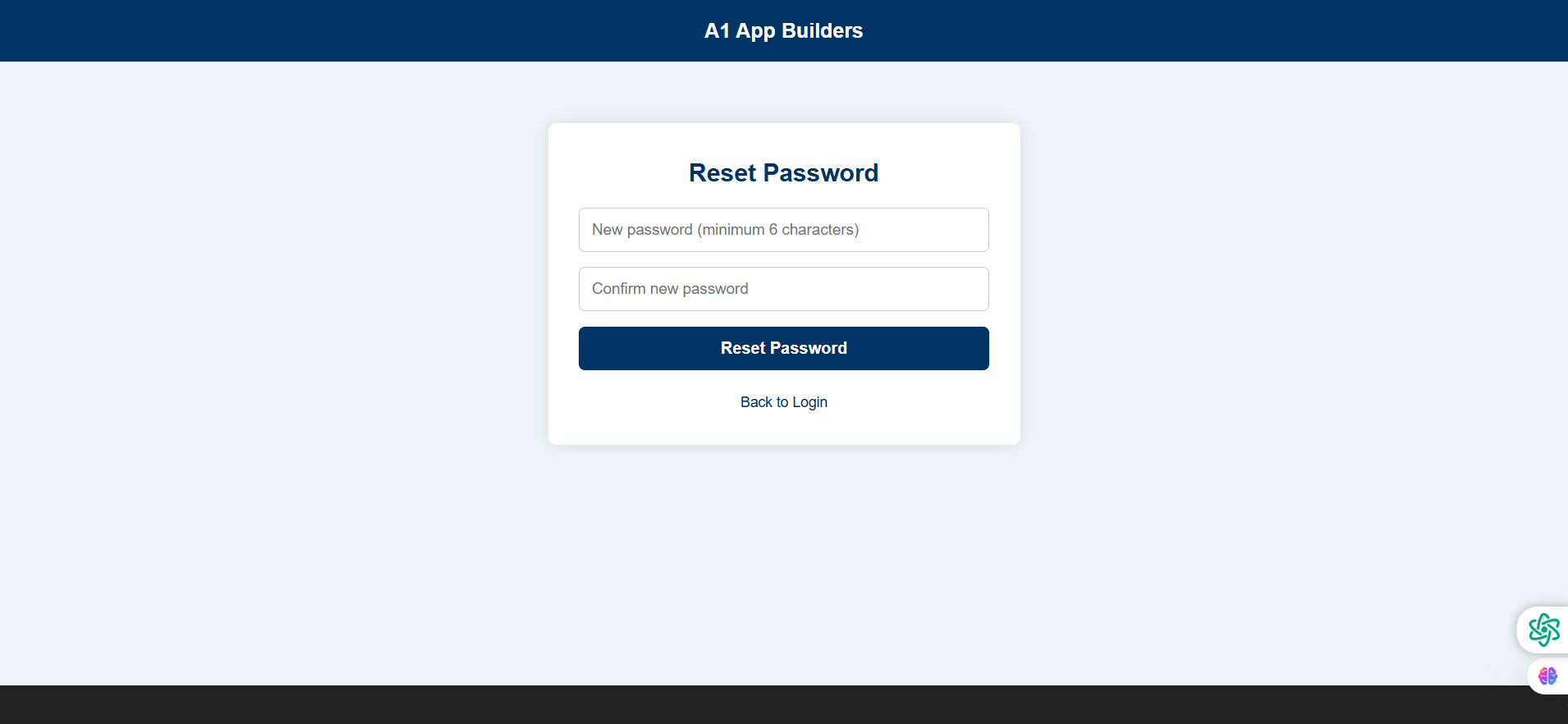
🔐 Password Recovery - Step 4: Create New Password
This final step allows users to set a new password after clicking the reset link from their email. It includes validation and confirmation fields to ensure password accuracy.
🔍 How It Works
- User enters their new password (minimum 6 characters) in the first field.
- User confirms the new password by entering it again in the second field.
- System validates that both passwords match before allowing submission.
- Clicks "Reset Password" button to finalize the password change.
- "Back to Login" link provides exit path if user decides not to proceed.
✨ Key Features
- Password Requirements: Clear placeholder text indicates minimum 6 character requirement.
- Confirmation Field: Reduces user error by requiring password entry twice.
- Clean Layout: Centered white card with simple form keeps focus on the task.
- Strong CTA: Dark blue "Reset Password" button stands out clearly.
- Navigation Option: Users can return to login if they've changed their mind.
🎯 Security
The confirmation field and minimum character requirement ensure users create secure passwords they can remember. Upon successful reset, users are typically redirected to the login page.
Policy:
All upgrades are free.
This is a try-before-you-buy product; no refunds are issued after purchase.