A 1 App Builders
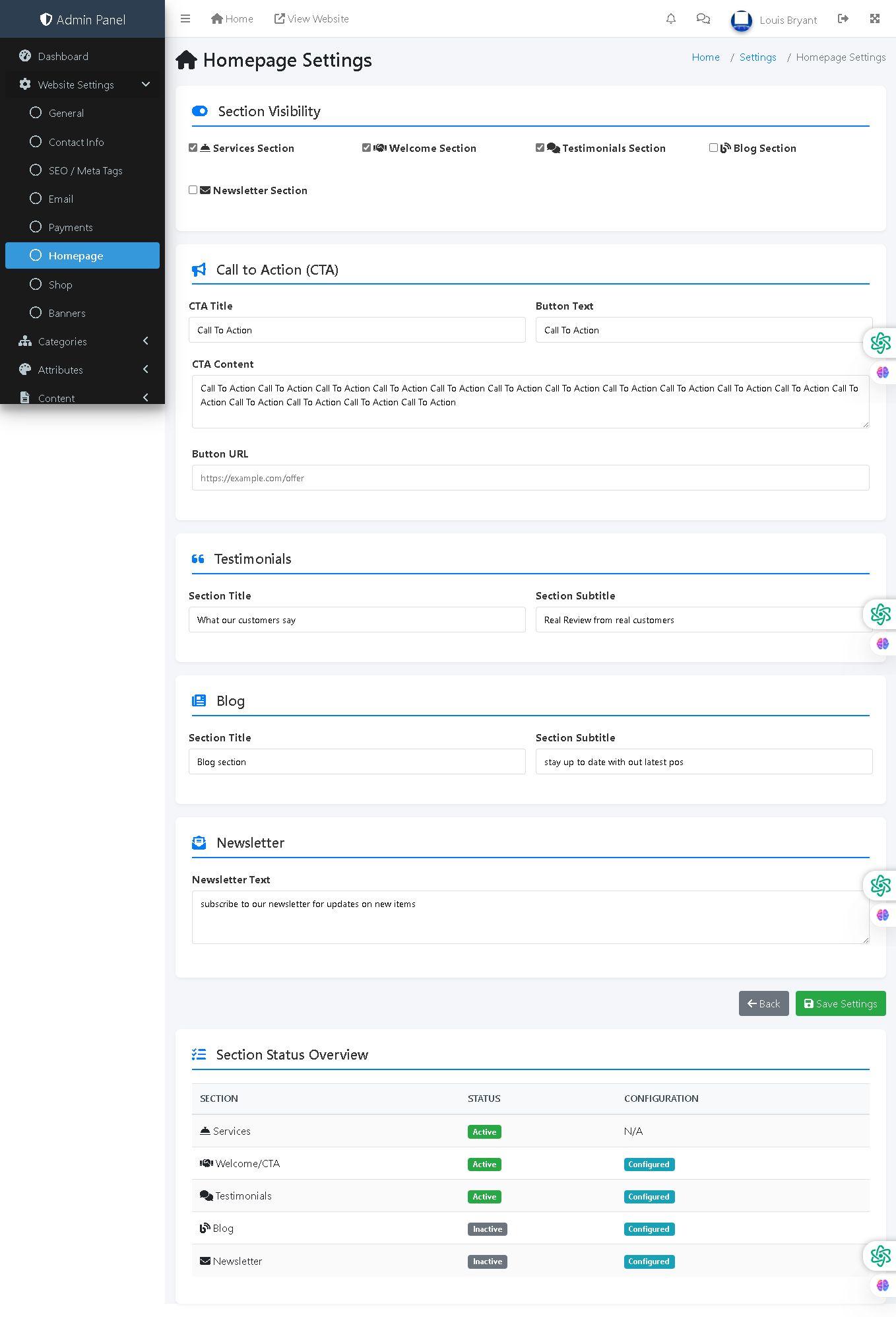
Welcome to the A1 App Builders Admin Homepage Settings Page—a content management interface where administrators control the visibility and configuration of homepage sections, manage call-to-action campaigns, customize testimonial displays, configure blog sections, and enable newsletter signups. This page provides comprehensive control over the homepage layout and content without requiring coding knowledge.
The layout features section visibility toggles, individual configuration panels for each homepage component, and a status overview dashboard showing active/inactive sections with their configuration states.
🌟 Key Features:
- Header Navigation: Top bar includes:
- Admin Panel branding and menu icon
- Home link and "View Website" for storefront preview
- Notifications, messages, user profile "Louis Bryant"
- Left Sidebar Navigation: Website Settings submenu with "Homepage" highlighted as active section.
- Breadcrumb Navigation: "Home / Settings / Homepage Settings" provides clear location context.
- Page Title: "Homepage Settings" with home icon.
- Section Visibility Panel: Blue-header section featuring:
- Toggle switches for controlling which homepage sections are displayed:
- ✓ Services Section (checked/enabled)
- ✓ Welcome Section (checked/enabled)
- ✓ Testimonials Section (checked/enabled)
- ☐ Blog Section (checked/enabled)
- ☐ Newsletter Section (unchecked/disabled)
- Quick on/off control for homepage components without detailed editing
- Toggle switches for controlling which homepage sections are displayed:
- Call to Action (CTA) Section: Blue-header section with megaphone icon containing:
- CTA Title Field: Text input showing "Call To Action"
- Button Text Field: Text input displaying "Call To Action"
- CTA Content Field: Large text area with placeholder text "Call To Action Call To Action..." demonstrating message content
- Button URL Field: Text input showing "https://example.com/offer" for CTA link destination
- Testimonials Section: Quote-icon section featuring:
- Section Title Field: Text input displaying "What our customers say"
- Section Subtitle Field: Text input showing "Real Reviews from real customers"
- Configuration for customer review section display
- Blog Section: Document-icon section containing:
- Section Title Field: Text input showing "Blog section"
- Section Subtitle Field: Text input displaying "stay up to date with our latest pos" (appears truncated)
- Blog content area configuration
- Newsletter Section: Envelope-icon section featuring:
- Newsletter Text Field: Large text area containing "Subscribe to our newsletter for updates on new items"
- Email subscription module configuration
- Form Submission Controls: Bottom action buttons:
- Back Button: Gray button with back arrow for navigation
- Save Settings Button: Green button with checkmark icon for form submission
- Section Status Overview Dashboard: Blue-header table displaying:
- Column Headers: SECTION | STATUS | CONFIGURATION
- Services Row: Green "Active" badge, "N/A" configuration status
- Welcome/CTA Row: Green "Active" badge, Teal "Configured" link
- Testimonials Row: Green "Active" badge, Teal "Configured" link
- Blog Row: Gray "Inactive" badge, Teal "Configured" link
- Newsletter Row: Gray "Inactive" badge, Teal "Configured" link
- Visual Design: Blue headers with icons for section identification (megaphone for CTA, quote for testimonials, document for blog, envelope for newsletter), color-coded status badges (green for active, gray for inactive), and two-column field layouts enable efficient configuration.
- Status Indicators: Checkboxes in Section Visibility for quick on/off, green/gray badges in overview for status at-a-glance, and teal "Configured" links for detailed editing.
💡 Why It Works
This homepage settings page empowers content managers to control website presentation without requiring developers or coding knowledge through intuitive toggles and form fields. The Section Visibility panel at the top provides quick on/off control for major homepage components—enabling administrators to instantly hide or display Services, Welcome, Testimonials, Blog, and Newsletter sections. The individual configuration panels for each section (CTA, Testimonials, Blog, Newsletter) provide granular customization while maintaining clean organization. The megaphone, quote, document, and envelope icons provide visual differentiation between sections, enabling rapid scanning and identification. The Section Status Overview dashboard at the bottom provides a comprehensive summary table showing which sections are active/inactive and which are configured, preventing administrators from accidentally deploying incomplete sections. The two-column field layouts (Section Title/Subtitle pairs) organize related fields logically. The back/save button pair at the bottom provides clear navigation options. This combination of visibility toggles, individual configuration panels, visual section identification, and status overview dashboard creates a homepage management system that enables rapid content updates and page layout modifications without requiring technical expertise or downtime.
Policy:
All upgrades are free.
This is a try-before-you-buy product; no refunds are issued after purchase.