A 1 App Builders
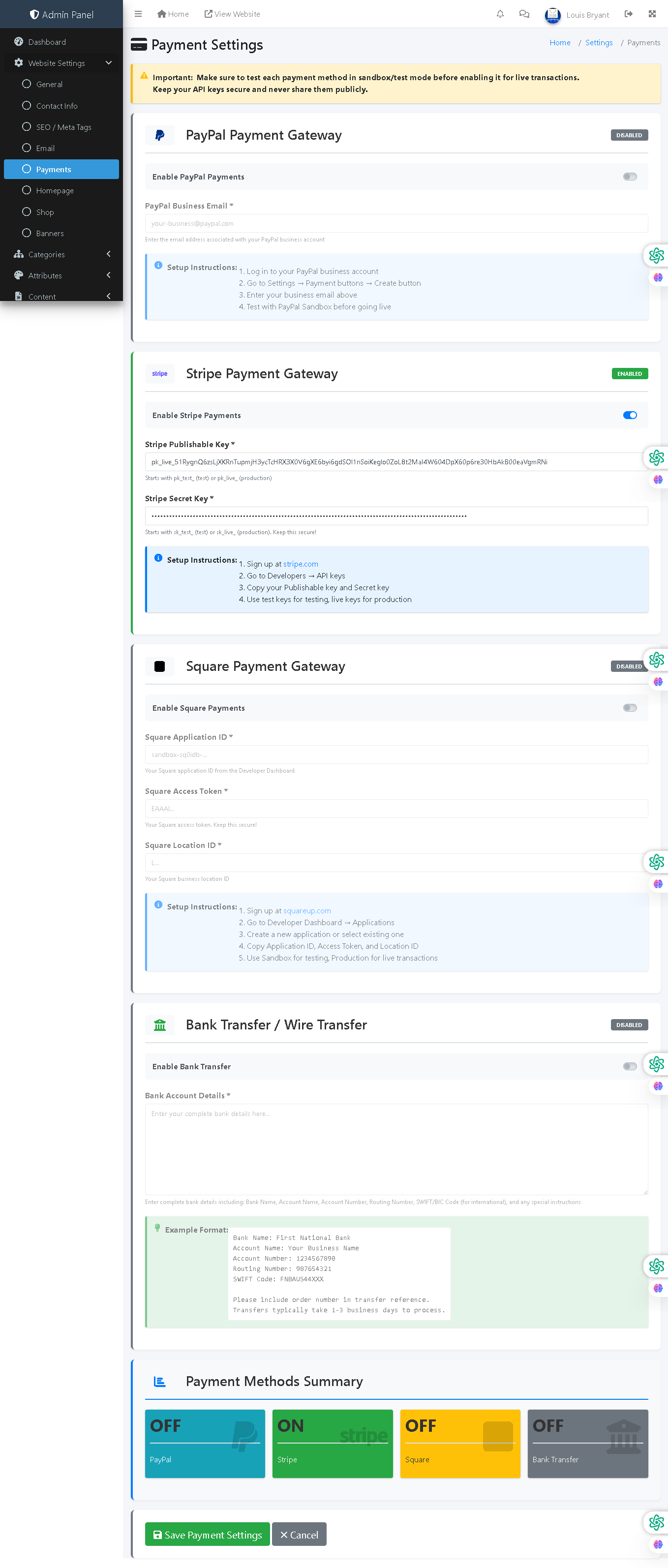
Welcome to the A1 App Builders Admin Payment Settings Page—a comprehensive payment processing configuration interface where administrators enable and configure multiple payment gateway integrations. This page allows management of PayPal, Stripe, Square, and Bank Transfer payment methods, with individual setup instructions and status toggles for each payment processor.
The layout features organized payment gateway sections with configuration toggles, credential input fields, setup instructions, and a visual payment methods summary dashboard showing the status of each enabled payment option.
🌟 Key Features:
- Header Navigation: Top bar includes:
- Admin Panel branding and menu icon
- Home link and "View Website" for storefront preview
- Notifications, messages, user profile "Louis Bryant"
- Left Sidebar Navigation: Website Settings submenu with "Payments" highlighted as active section.
- Breadcrumb Navigation: "Home / Settings / Payment Settings" provides clear location context.
- Page Title: "Payment Settings" with credit card icon.
- Security Warning Banner: Yellow alert box displaying: "Important: Make sure to test each payment method in sandbox/test mode before enabling it for live transactions. Keep your API keys secure and never share them publicly."
- PayPal Payment Gateway Section: Blue-header section featuring:
- PayPal logo icon with "PayPal Payment Gateway" heading
- "Disable" button (gray) for toggling payment method
- Enable PayPal Payments: Toggle switch (currently OFF)
- PayPal Business Email Field: Required text input with placeholder "your-paypal-email@example.com" and helper text
- Setup Instructions: Blue information box with numbered steps for PayPal configuration
- Stripe Payment Gateway Section: Green-header section containing:
- Stripe logo with "Stripe Payment Gateway" heading
- "Enable" button (green) for toggling payment method
- Enable Stripe Payments: Toggle switch (currently ON)
- Stripe Publishable Key Field: Required text input showing masked credential key with helper text "Start with pk_live..."
- Stripe Secret Key Field: Required masked text input with dots for security showing helper text "Start with sk_live..."
- Setup Instructions: Blue information box with numbered steps for Stripe configuration including "Sign up at stripe.com"
- Square Payment Gateway Section: Gray-header section featuring:
- Square logo with "Square Payment Gateway" heading
- "Disable" button (gray) for toggling payment method
- Enable Square Payments: Toggle switch (currently OFF)
- Square Application ID Field: Required text input with helper text "The Square Application ID from Developer Credentials"
- Square Access Token Field: Required text input with helper text "Your Square access token created in your account"
- Square Location ID Field: Required text input with helper text "Your Square Business Location ID"
- Setup Instructions: Blue information box with numbered configuration steps for Square integration
- Bank Transfer / Wire Transfer Section: Green-border section containing:
- Bank building icon with "Bank Transfer / Wire Transfer" heading
- Enable Bank Transfer: Toggle switch (currently OFF)
- Bank Account Details Field: Large text area for entering banking information
- Example Format Box: Green information box displaying sample bank transfer instructions with fields like Bank Name, Account Number, Routing Number, SWIFT Code, and reference information
- Payment Methods Summary Dashboard: Blue-header status section displaying:
- Four color-coded status cards showing payment method states:
- PayPal: Teal card with "OFF" status
- Stripe: Green card with "ON" status
- Square: Yellow card with "OFF" status
- Bank Transfer: Gray card with "OFF" status
- Quick visual overview of all available payment methods and their current status
- Four color-coded status cards showing payment method states:
- Form Submission Controls: Bottom action buttons:
- Save Payment Settings Button: Green button with checkmark icon for form submission
- Cancel Button: Gray button with X icon for reverting changes
- Visual Design: Color-coded payment sections (blue for PayPal, green for Stripe, gray for Square, green for Bank Transfer), toggle switches for on/off control, colored status cards in summary, and security-focused banner create professional appearance.
💡 Why It Works
This payment settings page enables administrators to integrate multiple payment processors without requiring technical expertise through clear field organization and setup instruction provided for each provider. The yellow security warning banner prominently displays the critical reminder to test in sandbox mode before enabling live transactions, preventing costly payment processing errors. The toggle switches enable quick activation/deactivation of payment methods without confusing multiple forms. The color-coded sections (blue for PayPal, green for Stripe) provide visual organization and quick scanning capability. The setup instruction boxes within each section reduce the need for external documentation or support tickets. The masked credential display (dots instead of full API keys visible) balances usability with security. The Payment Methods Summary dashboard at the bottom provides a quick status overview—Stripe is green/ON, PayPal is teal/OFF, Square is yellow/OFF, Bank Transfer is gray/OFF—allowing administrators to verify configuration at a glance. The example format box for Bank Transfer demonstrates exact formatting needed, reducing errors in manual entry. This combination of security warnings, multi-provider support, toggle-based activation, integrated setup instructions, and visual status dashboard creates a comprehensive payment configuration system that enables businesses to accept payments through multiple channels while maintaining security best practices.
Policy:
All upgrades are free.
This is a try-before-you-buy product; no refunds are issued after purchase.