A 1 App Builders
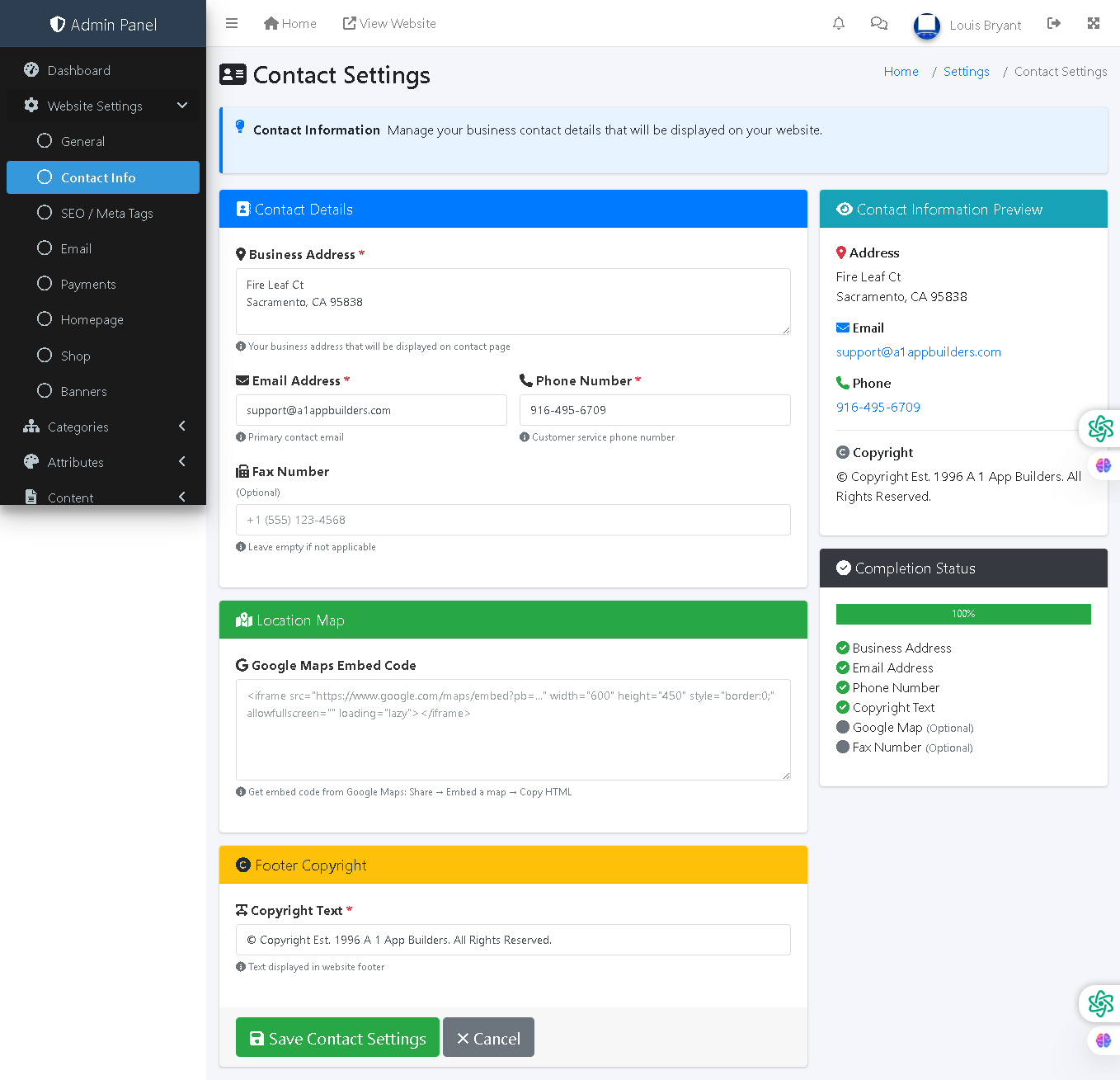
Welcome to the A1 App Builders Admin Contact Settings Page—a comprehensive configuration interface where administrators manage all business contact information, location services, and footer copyright details displayed to customers across the platform. This page enables centralized management of address, phone, email, fax, Google Maps integration, and legal copyright text.
The layout features organized form sections with input fields on the left and real-time preview panel on the right, coupled with completion status tracking and intuitive form submission controls.
🌟 Key Features:
- Header Navigation: Top bar includes:
- Admin Panel branding and menu icon
- Home link and "View Website" for storefront preview
- Notifications, messages, user profile "Louis Bryant"
- Left Sidebar Navigation: Website Settings submenu with "Contact Info" highlighted as active section.
- Breadcrumb Navigation: "Home / Settings / Contact Settings" provides clear location context.
- Page Title: "Contact Settings" with people icon and description: "Manage your business contact details that will be displayed on your website."
- Contact Details Section: Blue-header form area containing:
- Business Address Field: Large text area with location pin icon displaying:
- Fire Leaf Ct
- Sacramento, CA 95838
- Helper text: "Your business address that will be displayed on contact page"
- Red asterisk marking as required field
- Email Address Field: Text input showing "support@a1appbuilders.com" with envelope icon and "Primary contact email" helper text
- Phone Number Field: Text input displaying "916-495-6709" with phone icon and "Customer service phone number" helper text
- Fax Number Field: Optional text input showing "+1 (555) 123-4568" with fax icon, "(Optional)" designation, and "Leave empty if not applicable" helper text
- Business Address Field: Large text area with location pin icon displaying:
- Location Map Section: Green-header section featuring:
- Map pin icon with "Location Map" heading
- Google Maps Embed Code Field: Large text area for iframe embed code with example code placeholder
- Helper text: "Get embed code from Google Maps: Share → Embed a map → Copy HTML"
- Footer Copyright Section: Yellow-header section containing:
- Copyright icon with "Footer Copyright" heading
- Copyright Text Field: Text input displaying "© Copyright Est. 1996 A 1 App Builders. All Rights Reserved." with red required asterisk
- Helper text: "Text displayed in website footer"
- Right Panel - Contact Information Preview: Teal-header section displaying:
- Address Preview: Location pin icon with full address "Fire Leaf Ct, Sacramento, CA 95838"
- Email Preview: Envelope icon with "support@a1appbuilders.com" as blue hyperlink
- Phone Preview: Phone icon with "916-495-6709" as blue hyperlink
- Copyright Preview: Text display "© Copyright Est. 1996 A 1 App Builders. All Rights Reserved."
- Completion Status Section: Dark panel showing:
- "100%" completion indicator with green progress bar
- Completion checklist with green checkmarks:
- ✓ Business Address (required)
- ✓ Email Address (required)
- ✓ Phone Number (required)
- ✓ Copyright Text (required)
- Google Map (Optional - grayed out)
- Fax Number (Optional - grayed out)
- Form Submission Controls: Bottom action buttons:
- Save Contact Settings Button: Green button with folder icon for form submission
- Cancel Button: Gray button with X icon for reverting changes
- Visual Design: Color-coded section headers (blue for contact, green for map, yellow for copyright), real-time preview panel, completion status tracking, and clear form organization enable efficient configuration.
- Validation Indicators: Red asterisks mark required fields, optional fields clearly designated, and completion percentage provides progress feedback.
💡 Why It Works
This contact settings page reduces configuration friction through real-time preview functionality, enabling administrators to visualize changes before saving. The two-column layout (form on left, preview on right) provides immediate feedback on how contact information appears to customers. The color-coded sections (blue for contact, green for map, yellow for copyright) organize related settings into logical groups while maintaining visual distinction. The 100% completion indicator with green checkmarks provides motivational feedback and confirms all required fields are populated. Required fields are clearly marked with red asterisks while optional fields (Fax, Google Map) are grayed out in the completion checklist, managing administrative expectations. The helper text beneath each field provides context and instructions without cluttering the interface. The Google Maps embed code text area accommodates iframe codes from multiple map providers. The comprehensive preview panel on the right allows administrators to verify information accuracy without navigating to the public site. The Save/Cancel button pair at the bottom provides clear intent selection while preventing accidental updates. This combination of visual organization, validation feedback, real-time preview, and completion tracking transforms contact management from a tedious administrative task into an intuitive, confidence-building experience.
Policy:
All upgrades are free.
This is a try-before-you-buy product; no refunds are issued after purchase.