A 1 App Builders
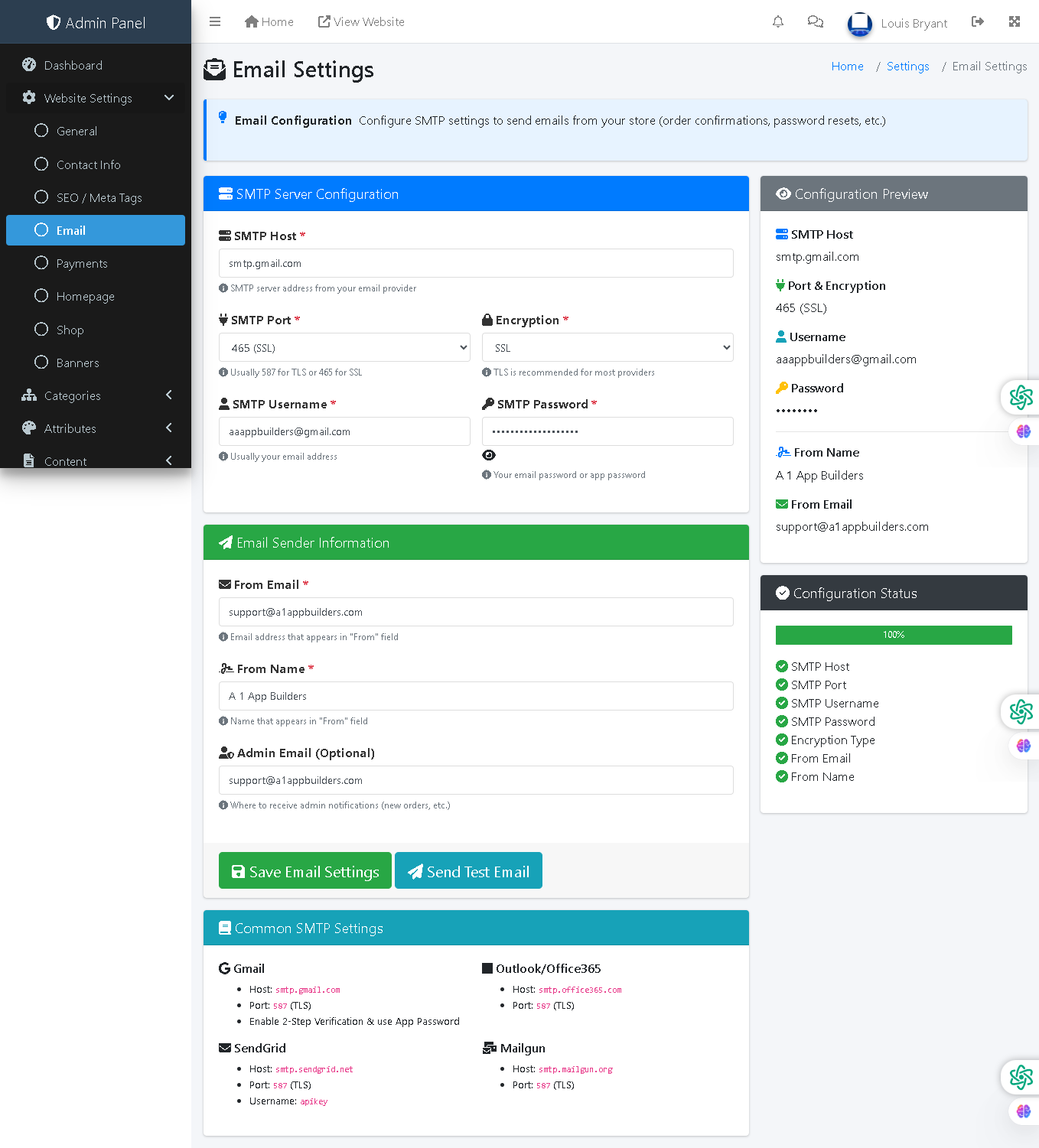
Welcome to the A1 App Builders Admin Email Settings Page—a technical configuration interface where administrators set up SMTP email delivery for automated platform communications including order confirmations, password resets, and transactional messages. This page enables email service integration through SMTP configuration while providing real-time validation feedback and common provider preset options.
The layout features organized configuration sections with input fields on the left, real-time configuration preview on the right, completion status tracking, and quick reference guides for popular email providers.
🌟 Key Features:
- Header Navigation: Top bar includes:
- Admin Panel branding and menu icon
- Home link and "View Website" for storefront preview
- Notifications, messages, user profile "Louis Bryant"
- Left Sidebar Navigation: Website Settings submenu with "Email" highlighted as active section.
- Breadcrumb Navigation: "Home / Settings / Email Settings" provides clear location context.
- Page Title: "Email Settings" with envelope icon.
- Information Banner: Blue information box explaining: "Email Configuration Configure SMTP settings to send emails from your store (order confirmations, password resets, etc.)"
- SMTP Server Configuration Section: Blue-header form area containing:
- SMTP Host Field: Required text input showing:
- Value: "smtp.gmail.com"
- Red asterisk marking as required
- Helper text: "SMTP server address from your email provider"
- SMTP Port Field: Required dropdown displaying:
- Value: "465 (SSL)"
- Helper text: "Usually 587 for TLS or 465 for SSL"
- Encryption Field: Required dropdown showing:
- Value: "SSL" with lock icon
- Red asterisk marking as required
- Helper text: "TLS is recommended for most providers"
- SMTP Username Field: Required text input displaying:
- Value: "aaappbuilders@gmail.com"
- Red asterisk marking as required
- Helper text: "Usually your email address"
- SMTP Password Field: Required masked text input showing:
- Value: Masked dots for security
- Red asterisk marking as required
- Eye icon for password visibility toggle
- Helper text: "Your email password or app password"
- SMTP Host Field: Required text input showing:
- Email Sender Information Section: Green-header form area featuring:
- From Email Field: Required text input displaying:
- Value: "support@a1appbuilders.com"
- Red asterisk marking as required
- Helper text: "Email address that appears in 'From' field"
- From Name Field: Required text input showing:
- Value: "A 1 App Builders"
- Red asterisk marking as required
- Helper text: "Name that appears in 'From' field"
- Admin Email Field: Optional text input displaying:
- Value: "support@a1appbuilders.com"
- "(Optional)" designation
- Helper text: "Where to receive admin notifications (new orders, etc.)"
- From Email Field: Required text input displaying:
- Form Action Buttons: Two buttons below the form:
- Save Email Settings Button: Green button with checkmark icon for form submission
- Send Test Email Button: Teal button with paper plane icon for validating configuration
- Common SMTP Settings Section: Teal-header reference guide displaying quick presets for:
- Gmail: Host (smtp.gmail.com), Port (587 TLS), Requires 2-Step Verification & App Password
- Outlook/Office365: Host (smtp.office365.com), Port (587 TLS)
- SendGrid: Host (smtp.sendgrid.net), Port (587 TLS), Requires API key
- Mailgun: Host (smtp.mailgun.org), Port (587 TLS)
- Right Panel - Configuration Preview: Gray-header section displaying:
- SMTP Host: "smtp.gmail.com"
- Port & Encryption: "465 (SSL)"
- Username: "aaappbuilders@gmail.com"
- Password: Masked dots
- From Name: "A 1 App Builders"
- From Email: "support@a1appbuilders.com"
- Configuration Status Section: Dark panel showing:
- "100%" completion indicator with green progress bar
- Completion checklist with green checkmarks:
- ✓ SMTP Host
- ✓ SMTP Port
- ✓ SMTP Username
- ✓ SMTP Password
- ✓ Encryption Type
- ✓ From Email
- ✓ From Name
- Visual Design: Color-coded sections (blue for SMTP, green for sender info, teal for presets), lock icons for secure fields, eye icons for password visibility, checkmarks for validation, and green progress bar for completion status.
💡 Why It Works
This email settings page makes complex SMTP configuration accessible to non-technical administrators through clear field organization, helpful descriptions, and common provider presets. The Common SMTP Settings reference section eliminates the need for administrators to research provider-specific settings, reducing setup time and errors. The password field with eye icon balances security with usability—allowing verification without exposing credentials unnecessarily. The "Send Test Email" button enables validation of configuration before deployment, preventing silent email delivery failures. The configuration preview panel on the right provides quick visual confirmation of entered settings without scrolling. The 100% completion indicator with green checkmarks confirms all required fields are populated and system is ready for email delivery. The color-coded sections (blue for technical SMTP, green for business sender info) organize related fields logically. Required fields are clearly marked with red asterisks while optional fields are designated, managing expectations about what information is necessary. The helper text beneath each field provides context-specific guidance without cluttering the interface. This combination of organized sections, provider presets, validation feedback, test functionality, and completion tracking transforms email configuration from a technical challenge into a straightforward, confidence-building administrative task.
Policy:
All upgrades are free.
This is a try-before-you-buy product; no refunds are issued after purchase.